
After the prologue, open Pause → Game → Save Game in free roam. There are 15 manual slots and one rolling autosave. Use Load Game to compare slots and timestamps.
If Continue keeps loading the wrong point, open Game → Load Game and compare the mission and timestamp on each row. Before a chapter change or major choice, keep a separate manual slot made in free roam. The autosave can move forward as you play, and a mission checkpoint can put you back inside the mission rather than outside it. GTABase's save menu and slot counts, PC Gamer's manual saving guide
Make and verify a manual save
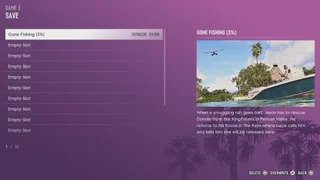
Choose a spare slot and use its progress details to identify it when you load.
- Finish the prologue and wait until you're back in ordinary free roam. Clear an active wanted level or ongoing fight before opening the menu.
- Press Options on PS5 or Menu on Xbox. Choose Game → Save Game.
- Pick an unused slot if you want to keep your existing checkpoint. If you choose an occupied row, verify the date and story state before agreeing to replace it.
- Wait for the save to finish. Open Game → Load Game and find the row you just wrote. Compare its timestamp and displayed progress, then back out. You can check the row without loading it.
If Save Game is grayed out, check whether the story is currently running a mission, whether enemies are still pursuing you and whether you've activated a cheat. Combat and a wanted level can block manual saving. A cheat session can also disable it. Keep a clean pre-cheat slot. Return to normal play and verify that the option works again before you count new progress as saved. GTABase's restrictions, PC Gamer's cheat-session saving notes
Check what autosave kept
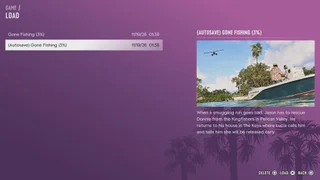
Compare the autosave row with the most recent manual slot.
Autosave can record progress after main missions and some side content. Wait for the saving indicator to disappear before closing the game. After a crash or an unexpected return to an older mission, compare the autosave row with your most recent manual slot in Game → Load Game. Make a manual save when you get back to free roam after a pickup or a long job you don't want to repeat.
Rockstar's November 23 update addresses an issue that caused incorrect autosaving. Apply the current game update if you're still playing an older launch build. Then check which slots are available. A patch can change future saving behavior while the existing list still reflects what the previous session managed to write. Rockstar's launch notes, GTABase's autosave menu description
Keep the saves that give you real options later
| Save while you are here | What this lets you revisit |
|---|---|
| First free-roam session of a chapter | Tasks or locations available only in the chapter you're starting. |
| Before Coming Home | Lucia's time-limited errands before the prison pickup. |
| Before Recalibration | A chance to bank your pocket cash and transfer it to Family Savings. See the Chapter 2 money and inventory guide. |
| Before Tourist Trap | Remaining Key Lento house pickups and a save outside the mission. |
| Before switching out of the Starlet Motel in Chapter 2 | The room pickups and other pre-departure missables. |
| Before heading to the Stockyard for The Cartel Heist | A clean run from the briefing. Keep an even earlier slot if you want to redo a setup job. |
| Before Meet Abe → Proceed in Chapter 5 | The opportunity to change your savings, relationship or profile before choosing a finale branch. |
| Before beginning a cheat session | A clean copy of your progress you can reload when you want to save again. |
Use two slots in rotation for ordinary progress. For example, if you last saved in slot 15, use slot 14 at the end of the next session. Verify the timestamp, and keep chapter checkpoints in other slots. You can then load yesterday's version if today's slot includes a choice you want to redo. GTABase on manual saves and mission replay
The right backup depends on what you're trying to recover. For Donnie's revolver, use a slot from before Don Gone. An end-of-chapter slot can be too late for the trunk. For a different bank heist result, a save before the Stockyard briefing lets you retry the vault, while a save before Company Property or Hidden Charges lets you change the preparation. Keep your current run in a different row so that checking an old save doesn't force you to replay the intervening chapters. Chapter 1 weapon deadlines, Cartel Heist setup and retry points
Recover the latest usable progress after a crash or reload
- Launch the game using the same console profile you used for the missing session. Let any platform save synchronization finish.
- Use Game → Load Game to compare the autosave, latest manual slot and your protected checkpoint. Look for a newer timestamp and the expected chapter or mission. Skip New Game while you find the right row.
- Load the most promising row, then check the current objective and look in your account or locker for the money and items you expected to keep.
- If the newer row repeatedly crashes, preserve it and try a different manual slot. If one works, save recovered play in a spare slot while you investigate the newer row. Follow the PS5 and Xbox crash guide if two independent slots also fail.
If your wallet is empty just after entering Chapter 2, check what carries over before loading an old save. If the latest confirmed save predates the session you want, look at the console's existing sync state before copying or downloading anything over your available data. PlayStation Plus subscribers can see whether the title has synced, and Xbox owners should let the platform complete any pending save sync. Compare the timestamps before choosing between copies. PlayStation's cloud storage instructions, Xbox cloud saves FAQ
Sources
Revision history
— Recently updated