
Use the left stick click to sprint and both stick clicks for Focus. Check Control Scheme or Controller Features if you changed the defaults.
With the Default scheme, press the left stick to sprint. The left trigger aims on foot and brakes or reverses in a car. The right trigger fires on foot and accelerates in a car. If you've changed the scheme, use the control preview under Settings to confirm what the game will expect.
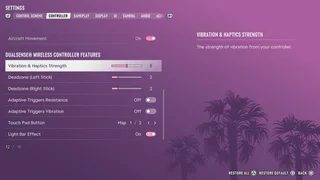
Open Controller Features to check the touch pad or View button assignment. Settings screenshot
On foot and in combat
| Action | PS5 | Xbox Series X or S |
|---|---|---|
| Move | Left stick | Left stick |
| Move the camera | Right stick | Right stick |
| Sprint | Press L3 | Press the left stick |
| Aim, then fire | L2, then R2 | LT, then RT |
| Open the weapon wheel and choose a slot | Hold L1, choose with the right stick | Hold LB, choose with the right stick |
| Activate Focus when available | L3 + R3 | Press both sticks |
| Talk to or interact with someone while holstered | Face them, hold L2 and choose the prompt | Face them, hold LT and choose the prompt |
| Enter or leave a car | Triangle | Y |
If a mission calls for an action near a person or object, read the prompt before you draw a weapon. The same trigger can open an interaction menu when your gun is holstered. Try Focus while looking for a clue near a safe. PC Gamer's control examples · Focus and safe clues
In a car
| Action | PS5 | Xbox Series X or S |
|---|---|---|
| Steer | Left stick | Left stick |
| Accelerate | R2 | RT |
| Brake or reverse | L2 | LT |
| Handbrake | Cross | A |
| Draw a sidearm while driving | L1 | LB |
| Fire from the vehicle when allowed | R1 | RB |
| Choose a vehicle weapon | Hold L1 | Hold LB |
| Open vehicle radio controls | Hold D-pad Left | Hold D-pad Left |
| Get out | Triangle | Y |
Controls can change when you're the passenger, piloting an aircraft or operating a boat. Use the vehicle's on-screen prompt for an unfamiliar action. For stations, volume and when to hold the radio control, use the GTA 6 radio guide.
Phone, character switch and map
- Tap D-pad Up for the phone and its apps. Once WAiNK is available, hold D-pad Up to use its view, then hold R1 / RB on a target to scan it. Check for a completion prompt before lowering the phone.
- Hold D-pad Right when the story allows you to choose Jason or Lucia. Check the available portrait. A forced switch during a mission follows the story prompt.
- Press the touch pad on PS5 or View on Xbox for the map under the default assignment. If you customized the button's function, check Controller Features.
- Use Options / Menu for the pause screen and the story save controls. Manual save is available from supported free-roam moments. Save and load controls
For a temporary close first-person look on foot, stand still, hold L2 / LT and press the right stick. The camera doesn't stay in that view for all on-foot actions. Use the camera controls in the situation you're adjusting. PC Gamer's first-person control test
If the camera is too close behind the car, use Settings → Controller → Controller Features to assign Camera to the touch pad or View button. Press it while parked to cycle available camera distances, then check the selected angle while driving. Change the assignment to Map when you want the map shortcut back. Look for first-person views in specific actions such as using your phone in the vehicle. Camera assignment and first-person limits
In water or on a bicycle
| Action | PS5 | Xbox Series X or S |
|---|---|---|
| Dive in from the edge | Cross | A |
| Dive deeper while in the water | Hold R1 | Hold RB |
| Surface | Cross | A |
| Sprint while riding a bicycle | Cross | A |
Double-check which context you're in. R1 / RB can scan a vehicle with WAiNK or study an animal with binoculars. Put the phone or binoculars away before using the same button to dive. For the first equipped dive, follow Kenton's boat and gear sequence. Swimming and bicycle controls
If a button feels wrong after changing your setup
Open Settings → Control Scheme, highlight the active scheme and compare its preview with Default. Classic switches Run and Crouch, and Left-Handed has its own preview. If you customized camera or map separately, check the active button under Controller Features. Default control scheme reference Check aiming or camera sensitivity separately. If D-pad Up produces the wrong phone view, compare a quick tap with a deliberate hold. GTA 6 console settings and control options
Sources
Revision history
— Recently updated